![tomis white.png]](https://support.tomis.tech/hs-fs/hubfs/tomis%20white.png?height=42&name=tomis%20white.png)
Your chatbot comes with several powerful integrations that connect it to your reservation system, improve the guest experience, and offer ways for your team to step in when needed. These integrations are set up during your initial build by the TOMIS team, but we recommend reviewing them to understand what’s active and to make any updates later on.
1. Check Availability
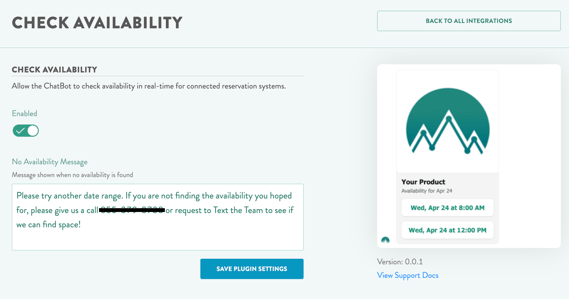
Allows guests to see real-time availability and book through the chatbot.
If your reservation system supports it, this integration allows the chatbot to check availability for specific tours or rentals and tell guests what is currently open to book. Most crucially, the Check Availability widget allows guests to book directly through the bot itself.
- When it’s helpful: Guests can get instant answers like “Yes, the 2PM kayak tour still has spots available,” along with a widget to book the tour directly through the bot
- When availability is low: You can customize the fallback message with your phone number, email, or WhatsApp so guests can still reach out.
✅ Important: Check Availability checks only work if your reservation system is fully connected.
2. Quick Replies
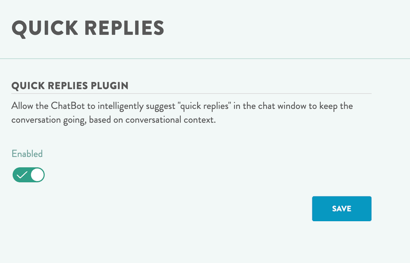
Add clickable suggestions inside the chat to guide the conversation.
Quick replies appear as button-style options (ex: “Check Availability” or “Talk with a Human”) to help guests quickly choose the next step without typing.
- What this controls: These quick replies are context-aware, meaning the bot will suggest them based on what the guest is asking.
⚠️ This doesn’t change the buttons on your chatbot’s welcome message, just the ones shown during an active conversation.
3. Transition to SMS Chat
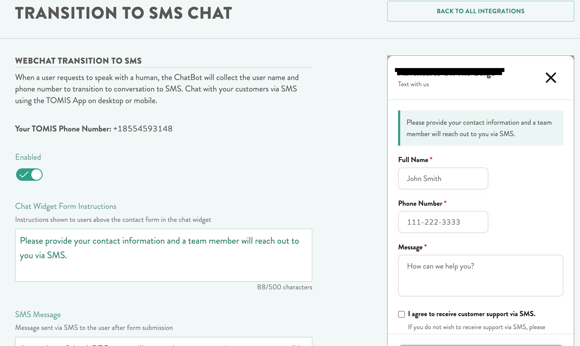
Let the chatbot hand off conversations to a human team member via text.
When a guest asks to speak to a human, the chatbot can collect their name, phone number, and message, then will send it to your TOMIS SMS inbox.
- You’ll reply using the TOMIS App (desktop or mobile).
- Guests receive your reply as a standard text message.
- You can fully customize the messages shown before and after the form submission.
Managing Your Integrations
All three integrations (Check Availability, Quick Replies, and SMS Chat) must be manually enabled, either by the TOMIS team during onboarding or by your team later using the Manage buttons.
If you ever want to:
- Turn a feature on or off
- Update messaging (like fallback texts or success messages)
- Add new priority quick replies
You can do that right from the Integrations tab under Configuration.
If you’re unsure which systems are synced or need help adjusting an integration, just reach out to us at chatbotsupport@tomis.tech We’re happy to help.