![tomis white.png]](https://support.tomis.tech/hs-fs/hubfs/tomis%20white.png?height=42&name=tomis%20white.png)
Follow these steps to add a new Quick Reply to your Welcome Message:
1. Create the Linked FAQ
-
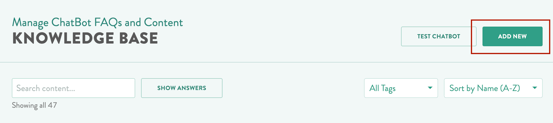
Go to your Knowledge Base.
-
Click the dark green Add New button in the upper-right corner.
-
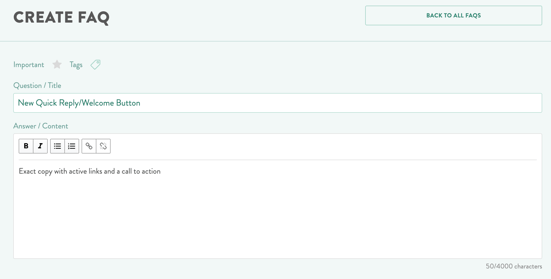
Enter the FAQ title — ideally, the same name you plan to use for your new Quick Reply.
-
Example: If your Quick Reply button will say “Summer Specials” name your FAQ “Summer Specials.”
-
-
Write the full answer text for this FAQ.
💡 Note: Whatever you write here (including links) will be shown word-for-word to users when they click this button.
-
Click Save.
2. Add the Quick Reply to Your Welcome Message
-
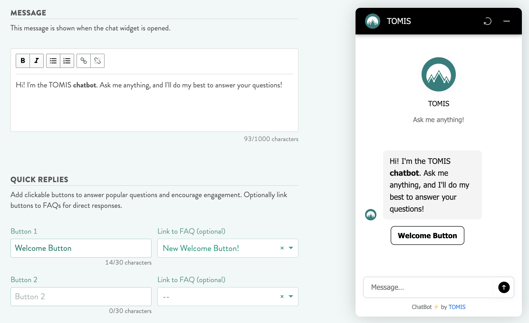
Go to Chat Widget → Welcome Message.
-
In one of the available Button Text boxes on the left, enter the wording for your new Quick Reply.
-
Example: Summer Specials
-
-
On the right, open the Link to FAQ menu.
-
Search for and select the exact FAQ title you created earlier.
-
Scroll down and click Save.
3. Test Your New Quick Reply
-
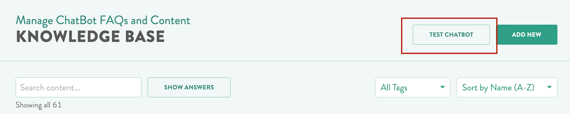
Return to the Knowledge Base page.
-
Click the Test Chatbot button (next to “Add New”).
-
A new window will open with your test chat widget — you can click your new button to confirm it works as expected.
That’s it! Your new Quick Reply is now live and linked directly to your chosen FAQ.