![Yonder_logo (1).png]](https://support.tomis.tech/hs-fs/hubfs/Yonder_logo%20(1).png?height=50&name=Yonder_logo%20(1).png)
By connecting your GA4 account, you’ll gain valuable insights into how visitors interact with your chatbot and see key performance metrics like sessions, conversions, transactions, revenue, conversion rates, and average booking value - all in one place.
Watch the Video:
Check out the video below for a quick walkthrough of the entire process.
Pre-Integration Requirements
- A GA4 Property: You must have a Google Analytics 4 (GA4) property set up in your Google account. If you haven’t created one, follow Google’s guide to setting up a GA4 property.
- Access Permissions: Make sure you have Admin or Editor access to the GA4 property you want to connect.
- Reservation System Tracking Setup: Verify that your reservation system is configured to send accurate booking and transaction data to GA4.
- Active Chatbot on Yonder: Your Yonder chatbot must be live and available to interact with website visitors.
How to Set Up the GA4 Integration
- Navigate to Integrations.
In Yonder, go to Settings > Other and select Google Analytics. - Connect Your GA4 Account.
Sign into your Google account. Select the GA4 property and audience you want to use.
For most users, the default “All Users” audience will work best. However, if multiple businesses share the same property (e.g., multiple locations on one domain), you can create a custom audience to track a specific business’s interactions. - Save the Integration.
Once saved, a new audience will be created in your GA4 property, named Chatbot Users - <Your Yonder Business ID>. It's that easy!
How Does it Work?
Our GA4 integration programmatically creates an Audience in your GA4 property. This audience captures the behaviour of users on your site who engage with your chatbot and follow links to complete a booking flow.
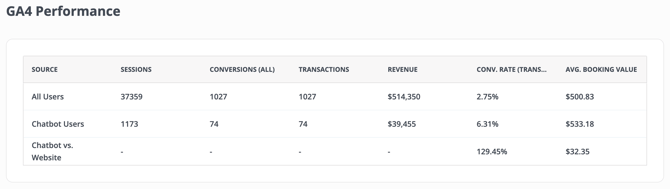
Once connected, you can navigate to Chatbot > Reports to view your GA4 performance metrics.
Here’s an example of what this will look like:
A Few Notes Regarding GA4 Data
- Tracking Setup Is Key: Your GA4 Data is only as good as the configuration of your reservation system’s tracking setup.
- Data Starts Upon Connection: GA4 data is tracked from when the integration is connected and the Chatbot audience is created. Historical data can’t be imported if the audience wasn’t already set up. Tracking begins from that point forward.
- Need Help with Your Data? If you are consistently seeing numbers that look "off" to you, it's worth reaching out to our team. We have an in-house tracking specialist who is happy to take a deep dive into your data and make sure it's working for you.
By enabling GA4 integration, you’re unlocking deeper insights into your chatbot’s performance and its impact on your business.
Frequently Asked Question
When will I start seeing data in GA4 after connecting?
Data begins tracking from the moment the integration is saved. Please allow a few hours for the metrics to start populating in your GA4 property.
What kind of metrics will I see in GA4 after integration?
You’ll be able to view sessions, conversions, transactions, revenue, conversion rates, average booking value, and other key performance insights tied to users who interact with your ChatBot.
What happens if my reservation system isn’t properly set up for GA4 tracking?
Inaccurate or incomplete reservation tracking can lead to misleading or missing data. We strongly recommend verifying your setup or reaching out to our team for guidance.
Have questions? Contact support@yonderhq.com