![Yonder_logo (1).png]](https://support.tomis.tech/hs-fs/hubfs/Yonder_logo%20(1).png?height=50&name=Yonder_logo%20(1).png)
Step-by-Step Integration Guide
-
Log in to Flybook
-
Navigate to your Flybook dashboard and log in with your credentials.
-
-
Access API Integrations
-
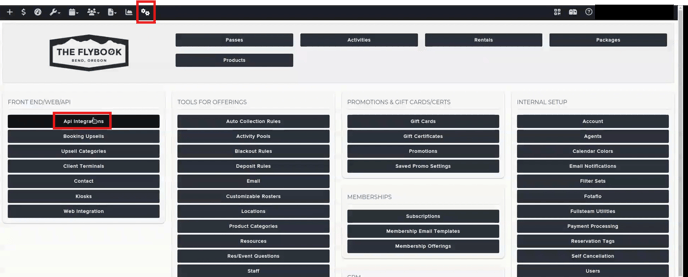
In the Flybook dashboard, click on the Setup icon.
-
From the dropdown, select API Integrations.
-
-
Add a New Integration
-
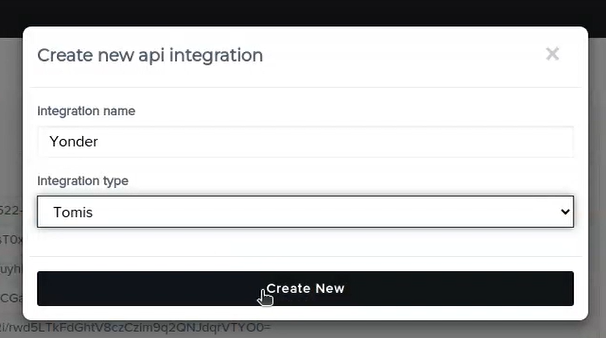
Click Add New Integration.
-
For the Integration Name, you can choose any name, but we recommend using "Yonder" for clarity.
-
Set the Integration Type to TOMIS.
-
-
Create the Integration
-
Click Create New.
-
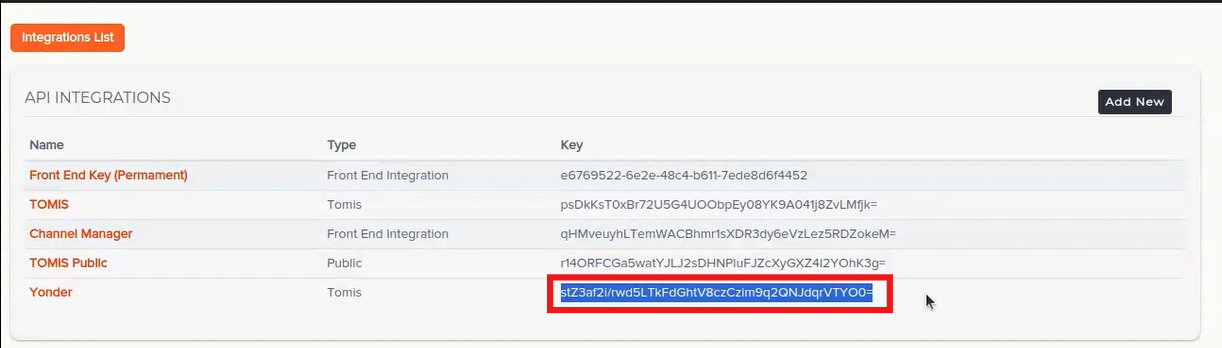
Once created, a new integration entry will appear, displaying a unique API key.
-
-
Copy the API Key
-
Copy the generated API key for the new integration.
-
-
Activate Integration in Yonder
-
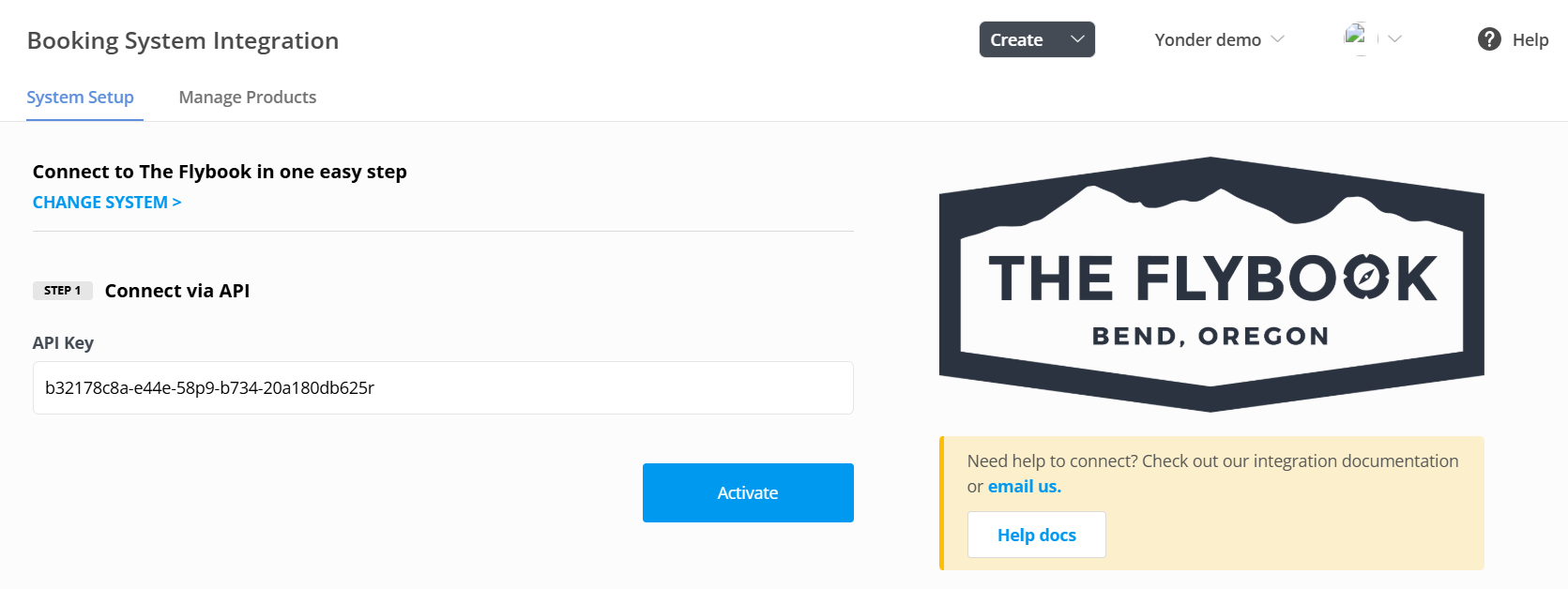
Log into your Yonder Dashboard and navigate to Settings -> Booking System.
-
Locate The Flybook integration section.
-
Paste the copied API key into the designated field.
-
Click Activate.
-
Your Flybook integration is now active and ready to use!
Additional Information
-
You cannot delete integrations once created in The Flybook, so avoid creating multiple unnecessary entries.
-
Ensure that you paste the API key correctly to prevent activation errors.
Frequently Asked Questions
-
Can I rename the integration after creating it?
No, once the integration is created in The Flybook, the name cannot be changed. -
What happens if I lose the API key?
You will need to create a new integration in The Flybook to generate a fresh key. -
Why can't I delete old integrations in Flybook?
Flybook currently doesn't support deleting integrations, so it's important to manage them carefully. -
Do I need to refresh the API key periodically?
No, the API key remains valid unless manually revoked or if the integration settings are changed. -
What should I do if the integration doesn't activate in Yonder?
Double-check that the API key is correctly copied and pasted. If issues persist, contact our support team.