![Yonder_logo (1).png]](https://support.tomis.tech/hs-fs/hubfs/Yonder_logo%20(1).png?height=50&name=Yonder_logo%20(1).png)
Wherewolf notifies Yonder whenever a customer checks in, either online or in-store. These notifications also include updates to the check-in, such as changes in status or visit dates (e.g., rescheduling).
Yonder records the first time the waiver was completed as the 'check-in date.'
Data Provided by Wherewolf
Wherewolf sends the following customer details to Yonder:
-
Customer name
-
Email address
-
Booking start date (date of visit)
-
Booking reference
Since the survey is tied to the customer's unique information, they don’t need to re-enter details when responding.
Survey Sending Rules
-
Surveys are sent a set time after the visit (configurable in Send Settings).
-
Surveys are only sent to customers who completed their visit (statuses like 'checked in' or 'finalised').
-
Surveys are not sent to customers marked as 'incomplete,' 'no-show,' or other statuses indicating a cancelled visit.
-
If an email is used across multiple check-ins under a single booking reference (e.g., a family booking), only one survey is sent.
-
For repeat customers, surveys can be sent at defined intervals (e.g., only if more than 3 months have passed since the last survey in the Limits and Reminders setup).
How to Integrate Yonder with Wherewolf
To integrate Wherewolf with Yonder, follow these steps:
1. Request a Webhook from Wherewolf
Email the Wherewolf customer support team to request a webhook with the following data:
-
Customer Name
-
Customer Email
-
Phone Number (optional) – for follow-ups if needed.
-
Last Visit Date – the survey is sent after this date.
-
Check-in Date
-
Check-in Status – determines if a survey should be sent (e.g., no survey for 'no-show' status).
-
Product ID & Name – enables automatic classification of ratings and filtering.
-
Booking ID – ensures one survey per booking when the same email is used multiple times.
-
Customer ID – an alternative unique identifier in the absence of a Booking ID.
-
Accepts Marketing – not currently used but included for future features.
You can copy and paste this request for easy reference:
"Please include this data in the information sent to Yonder: Customer Name, Customer Email, Phone Number, Last Visit Date, Check-in Date, Check-in Status, Product ID & Name, Booking ID, Customer ID, Accepts Marketing."
2. Enter Your Pool ID in Yonder
Once Wherewolf has set up webhooks, enter your Pool ID into Yonder - Via Integrations -> Other -> Wherewolf. This ensures that notifications from Wherewolf are assigned correctly to your account.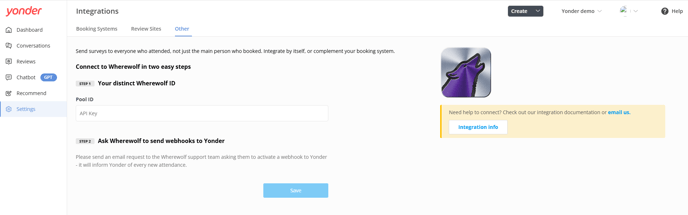
3. Start Sending Webhooks
Wherewolf will start sending check-in data to Yonder, allowing survey automation.
4. Enable Survey Sending
-
Go to Send Settings in Yonder.
-
Enable "Send Automatically After a Visit."
Managing Product Data
By default, Yonder sends surveys for all tours/products. Wherewolf provides limited product data, often only the Product ID rather than the name. This can result in a list of numerical IDs instead of meaningful product names.
Solutions for Better Product Control
Integrating Yonder with Both Your Booking System & Wherewolf
For the best experience, integrate both your booking system and Wherewolf with Yonder (if Yonder supports your booking system). This provides:
-
More control over which tours/products receive surveys.
-
Surveys for participants of tours that don’t require Wherewolf check-ins.
-
Additional Yonder features such as:
-
The ChatBot to answer customer queries.
-
Personalised Recommendations & Quizzes based on customer preferences.
-
Manually Set Up a Product List
If Yonder does not integrate with your booking system, email support@yonderhq.com with a list of your Product Names and Product IDs.
Frequently Asked Questions
Q. Can I control when surveys are sent?
Yes, you can configure the delay in Send Settings.
Q. What happens if a customer reschedules?
Wherewolf notifies Yonder, and the survey is sent based on the updated visit date.
Q. Can I prevent frequent customers from receiving too many surveys?
Yes, you can set a minimum time interval (e.g., only send if at least 3 months have passed since the last survey).
Q. What if I use the same email for multiple bookings?
Yonder sends only one survey per booking reference, even if the email is reused.
Q. Why do I see Product IDs instead of names?
Wherewolf often provides only Product IDs. Integrate your booking system, or manually add product names by emailing Yonder.
Have other questions? Contact support@yonderhq.com.