![Yonder_logo (1).png]](https://support.tomis.tech/hs-fs/hubfs/Yonder_logo%20(1).png?height=50&name=Yonder_logo%20(1).png)
Yonder’s Reviews product is your all-in-one solution for automating customer feedback! Achieve high response rates by sending engaging review requests and surveys. This guide walks you through the essentials of setting up surveys and review requests in a few simple steps.
How to Set Up Surveys and Review Requests
Login to Yonder, navigate to the Reviews tab, and click Setup to get started!
1. Request
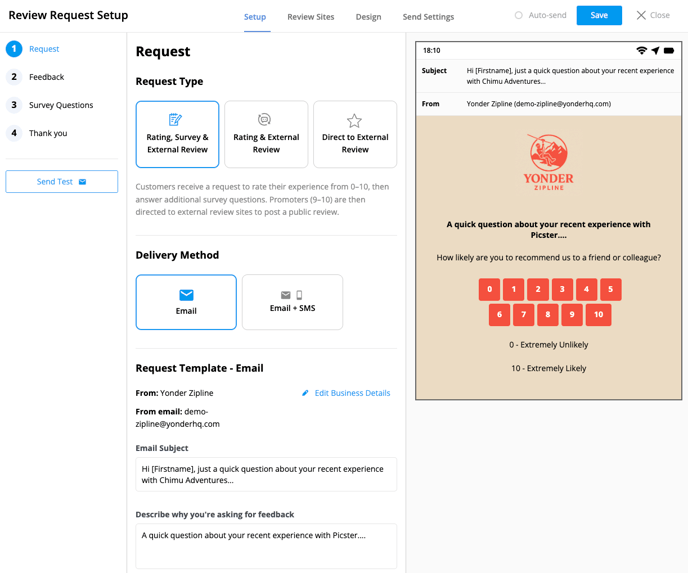
Choose Your Request Type
Select from three request types, depending on the kind of feedback you want to gather:
- Rating, Survey & External Review: Customers receive an NPS rating request (0–10), followed by additional survey questions. Promoters (9–10) are then prompted to post a public review on an external site.
- Rating & External Review: Customers are asked to rate their experience from 0–10. Promoters (9–10) are directed to leave a public review. No additional survey questions are included.
- Direct to External Review: Customers are taken straight to external review sites, with no rating or survey questions collected. Everyone receives the review links.
Choose your delivery method
Select how you'd like to send the review request:
- Email: Requests are sent to the email address linked to each booking - typically the lead booker or primary contact in your booking system.
- Email & SMS : (Currently limited to +1 North American numbers only - International SMS coming soon!) Sends both an email and an SMS message. The SMS includes a direct link to the review request and is sent to the mobile number listed in the booking.
Personalize your email template
Customize the email subject line and description to match your brand’s tone of voice and encourage engagement.
2. Feedback
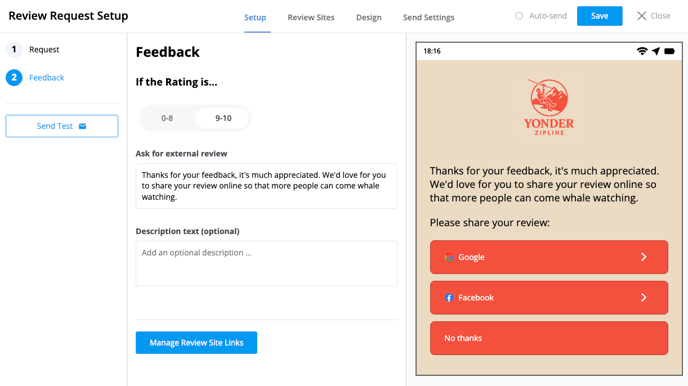
This step appears only if your request type is Rating, Survey & External Review or Rating & External Review.
- Guests who rate 0–8 are asked to leave private feedback, which is collected internally.
- Guests who rate 9–10 are prompted to leave a public review on external sites.
You can customize the messages shown to each group and choose whether feedback is required before they continue.
3. Survey Questions
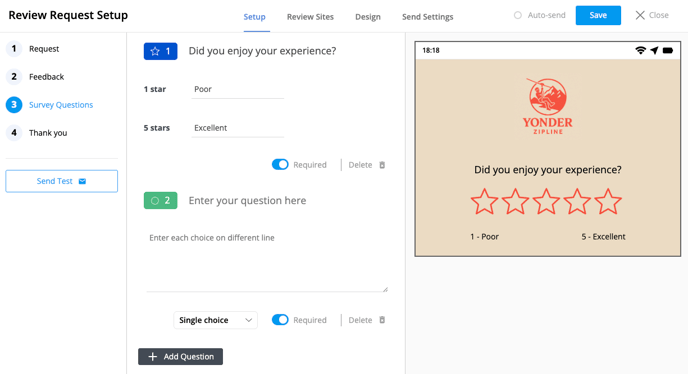
This step appears only if your request type is Rating, Survey & External Review. Add custom survey questions to collect more detailed feedback from your guests:
- Choose Question Types: Options include star ratings, multiple choice, short answer, long answer, and more.
- Set the number of questions: Aim for 4-8 questions to achieve the perfect balance of insightful feedback and high completion rates.
📘 Learn more: Adding Custom Questions to Yonder Surveys.
4. Thank You
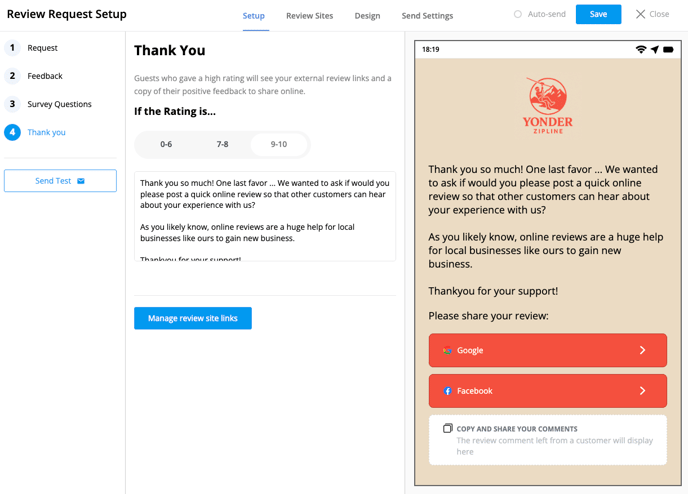
Personalize the final message customers see after completing the survey:
- Detractor Ratings (0–8): Display a simple thank-you message for their feedback.
- Promoter Ratings (9–10): Encourage customers to share their positive reviews online.
5. Review Sites
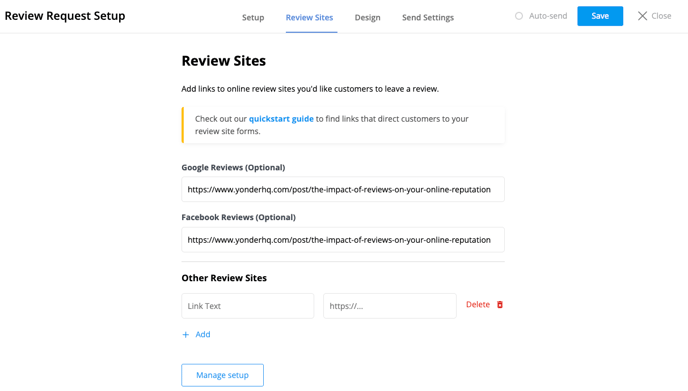
Use the Review Sites tab to add links to the platforms where you’d like customers to leave public reviews.
You can add multiple review sites, such as:
- Google Reviews
- Facebook Reviews
- TripAdvisor, Bookme, or any other relevant platforms
These links will be shown to customers who gave a 9–10 rating, encouraging them to share their positive experience online.
Need help finding your review form URLs? Check out our guide on How to add Online Review Links to your Review Requests.
How to Send Surveys
Automatic Sending
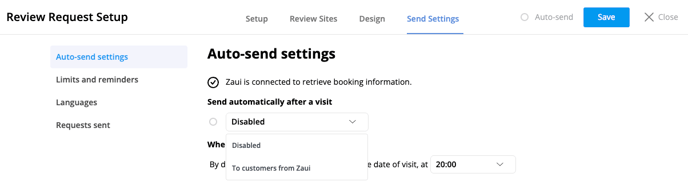
- Integrate Your Booking System: Connect your CRM or booking system to automatically send surveys. Select which products or services to associate with surveys. Visit our Integration Help Centre for setup instructions.
- Adjust Send Setting: In the ‘Send Settings’ tab, configure the timing of review requests, set up reminder emails, control limits for returning customers, and enable multiple languages.
- Turn Auto-Send On: Enable ‘Send Automatically After a Visit’ and save your changes.
- Manual Sending: If your booking system isn’t compatible, you can send surveys manually.
📘 Learn more: How to Setup Auto Send Surveys and Sending Surveys Manually.
Frequently Asked Questions
Can we customise the survey if we have multiple organisations?
Yes! If you manage multiple brands, you can customize the name and logo for each organization. Read our 'Managing Multiple Organisations' article.
Can I preview the email before sending it to customers?
Yes! During the survey setup, you can use the 'Send Test' option to preview how the email looks and works. Test responses won’t be saved, so feel free to experiment.
Can I schedule surveys to be sent at a specific time?
Absolutely. In the Send Settings, you can choose when to send surveys. By default, surveys are sent one day after the visit at 8 PM. You can also schedule reminder emails for customers who haven’t completed the survey.
How do I track responses and reviews?
Track sent surveys in the 'Requests Sent' tab and view responses in the 'All Reviews' tab. For a detailed overview, visit the 'Reports' section for statistics and insights.
How do I respond to Yonder surveys?
Survey responses are private and only visible to you. You can use the AI-generated response feature to send email replies to Yonder feedback.
Have other questions? Contact support@yonderhq.com.