![Yonder_logo (1).png]](https://support.tomis.tech/hs-fs/hubfs/Yonder_logo%20(1).png?height=50&name=Yonder_logo%20(1).png)
Not every guest comes with a bookable email address. Walk-ins, OTA bookings, and third-party reservations often leave no way to send a survey automatically. The Public Link gives you an unique URL and QR code that any guest can use to complete a Yonder survey on their own device. Each visit to the link generates a new survey, so responses are always tracked individually.
Where to Find Your Public Link
-
Log in to Yonder and navigate to Reviews > Send Requests.
-
Click the Public Link tab.
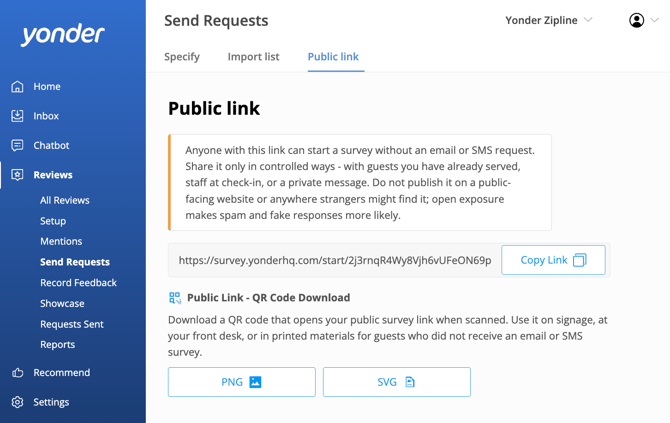
You'll see two options: a copyable URL and a downloadable QR code.
Choosing Which Organization the Link Belongs To
If your account uses the Organizations feature, an organization dropdown appears on the Public Link page. Leave it on All organizations for the account-wide link, or select a single organization to get a link and QR code just for that one.
Responses from an organization link are attributed to that organization, and the survey uses its branding and review site links. The link and QR code update as soon as you change the dropdown, so check your selection before you copy or print.
📘 Learn more: Managing Multiple Organisations.
Your Two Sharing Options
URL - Share the Link Directly
Copy your unique public survey URL and drop it into a message, email, or booking confirmation for guests who didn't receive an automated survey request.
The link displays in a read-only field with a Copy Link button inline. Your URL will look like: https://survey.yonderhq.com/start/xxxxxxxxxxxxxxxxxxxx
QR Code - Print and Display at Your Venue
Download a QR code to use on signage, at your front desk, or in printed handouts. Guests scan it with their phone camera — no app required — and are taken straight to the survey.
Download formats available:
- PNG — 256px, 512px, or 1024px
- SVG — scalable for print
Note: Your public link URL is permanent. The QR code will always point to the same address, so you can print it once and reuse it. This applies to organization links too, so you can print a separate QR code for each location.
How the Guest Experience Works
When a guest visits your public link or scans your QR code:
-
1. They're taken straight into your existing Yonder review request flow: NPS rating, feedback, and (if a promoter) your review site links.
-
At the end of the flow, they're shown a short optional contact form asking for their name and email.
-
They can fill this in or skip it — either way, their survey responses are already saved.
Responses are logged in your All Reviews tab. Guests who skip the contact form appear as Anonymous Guest.
Frequently Asked Questions
What if a guest skips the contact form?
Their response is still captured and logged as "Anonymous Guest." The survey data — rating, feedback, and any survey answers — is recorded in full.
Does this work for operators with multiple organizations?
Yes. Use the organization dropdown on the Public Link page to generate a separate link and QR code for each organization. Leave it on All organizations for the account-wide link.
Is my public link permanent?
Yes. The URL and QR code are fixed once generated. You can print the QR code and reuse it indefinitely. If you ever need the URL changed, contact support@yonderhq.com.
Can I use this alongside my automated email surveys?
Absolutely. The Public Link is an additional channel — it doesn't affect your auto-send or manual send settings. Use it to capture guests who fall outside your normal sending workflow.
Does this work for operators with multiple organisations?
Yes. The Public Link will use the branding, logo, and review site links already configured for your account. If you manage multiple organisations, each will use its respective setup.
Have other questions? Contact support@yonderhq.com