![Yonder_logo (1).png]](https://support.tomis.tech/hs-fs/hubfs/Yonder_logo%20(1).png?height=50&name=Yonder_logo%20(1).png)
What You’ll Need Before You Start
Before setting up the WhatsApp integration, please make sure you have the following:
-
A validated Facebook Business account.
-
A WhatsApp Business Messenger account connected to that Facebook Business account.
-
Access to the mobile device where your WhatsApp Business Messenger is installed.
How to Connect WhatsApp
Step 1: Start the Integration in Yonder
-
Log in to your Yonder account.
-
Go to Settings → Integrations → Inbox Channels.
-
Click WhatsApp and select Setup Integration.
You’ll be redirected to Facebook to begin the WhatsApp Embedded Signup process.

Step 2: Log in with Facebook
-
Log in using the Facebook account that manages your Business account.
-
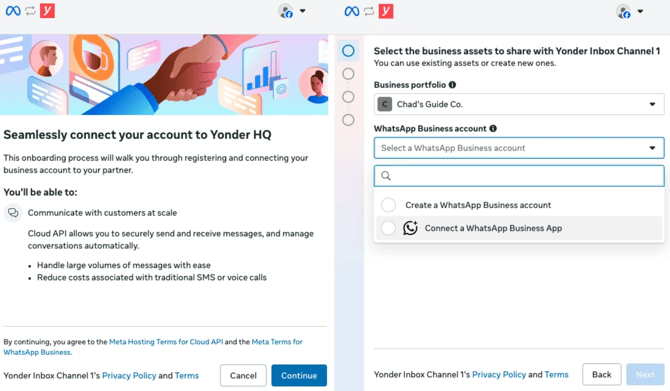
When prompted, choose Connect a WhatsApp Business App (recommended if you already use WhatsApp Business Messenger).
-
Review the permissions and continue.
Step 3: Select Your WhatsApp Business Number
-
Enter or select your existing WhatsApp Business phone number.
-
Continue through the setup screens.
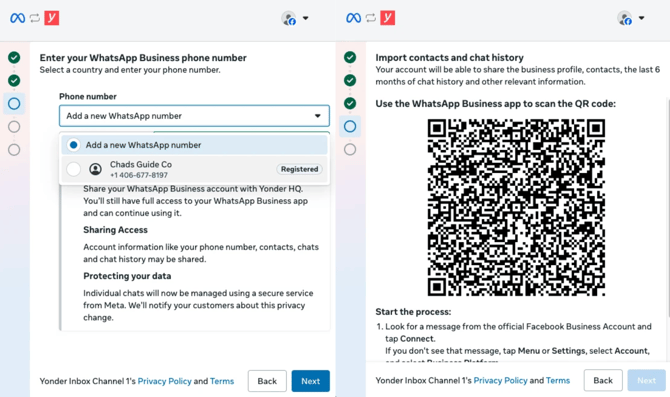
Facebook will now send a system message to your WhatsApp Business Messenger app.
Step 4: Confirm on Your Mobile Device
-
Open WhatsApp Business Messenger on your phone.
-
Open the system message from Meta.
-
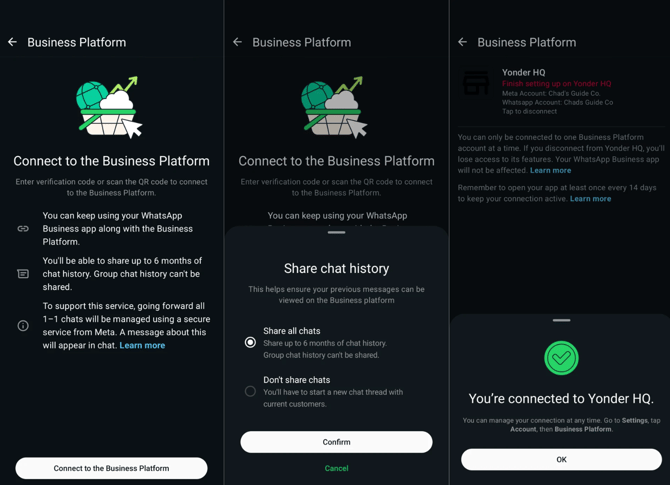
Click Connect then select Connect to the Business Platform.
-
Choose Share all chats and click Confirm.
This allows Yonder to sync existing and future conversations. The connection may take up to 45 seconds to complete.
Once successful, you’ll see a confirmation message saying “You’re connected to Yonder HQ.” Tap OK to finish.
Step 5: Complete the Connection
-
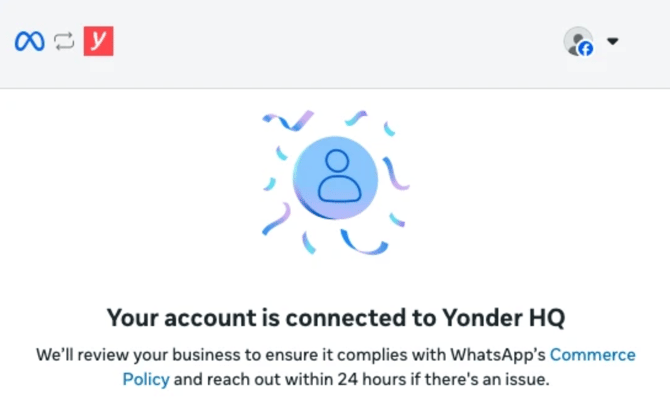
Return to the WhatsApp signup screen in your browser and wait while the connection finalises.
-
You’ll then see a confirmation message that your account is connected to Yonder.
Step 6: Set Up Payment Method (Required to Send Messages)
At the end of setup, you’ll be prompted to add a payment method in Facebook Business Manager.
-
You can skip this step temporarily, but you won’t be able to send WhatsApp messages from Yonder until a payment method is added.
-
Meta applies WhatsApp Business API messaging charges, which is why this step is required.
How WhatsApp Messaging Works
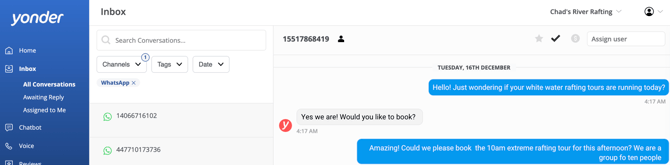
Once connected, WhatsApp conversations will appear directly in the Yonder Unified Inbox, alongside your other messaging channels.
What Customers Can Send
Customers can send text messages, images, video, audio messages, and stickers. If a customer sends an unsupported media type, it won’t be delivered and they’ll be notified.
How Your Team Can Respond
Replies from the Yonder Inbox are currently plain text only. If you’d like to send media, reactions, or use other native WhatsApp features, you can do this from the WhatsApp Business app. Messages sent from the WhatsApp Business app will be delivered to the customer and will also appear in the Yonder Inbox.
Inbox Filtering
Customer details from WhatsApp are displayed in the conversation view. Use the dedicated WhatsApp filter to quickly view WhatsApp conversations only.
Message status and read receipts
You can track sent, delivered, and failed . When a customer reads your message, it will automatically be marked as read in Yonder.
24-hour messaging window
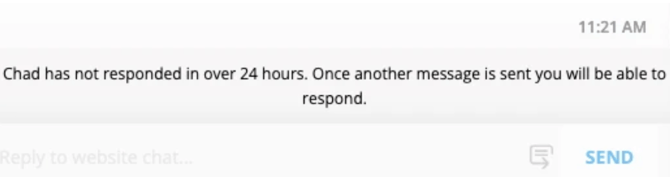
WhatsApp operates on a 24-hour customer service window. If a customer has not replied within 24 hours, you’ll see a notification that the messaging window has expired. Sending messages from the Inbox will be disabled until the customer responds again.
Frequently Asked Questions
Is the chatbot available for WhatsApp messages?
Not yet. WhatsApp is currently a human-only channel. Chatbot support for WhatsApp is coming soon!
Will my previous WhatsApp conversations appear in Yonder?
Yes. If you selected Share all chats during setup, past conversations will sync into the Yonder Inbox.
Can I keep using the WhatsApp Business Messenger app after connecting?
Yes. You can continue using the app to send messages, including media and reactions. Messages sent from the WhatsApp Business Messenger app will be delivered to the customer and will also appear in the Yonder Inbox.
Why can’t I send WhatsApp messages from Yonder?
You’ll need to add a payment method in Facebook Business Manager. Sending messages isn’t enabled until this is completed.
Can I disconnect WhatsApp from Yonder?
Yes. Go to Settings → Inbox Channels, click the WhatsApp tile, and select Delete. Deleting the connection will remove all WhatsApp conversation history from the Yonder Inbox. If you reconnect the same WhatsApp account and select Share all chats, Yonder will re-sync and restore the conversation history.
Need help?
If you run into any issues or have questions, contact us at support@yonderhq.com and our team will be happy to assist.