![Yonder_logo (1).png]](https://support.tomis.tech/hs-fs/hubfs/Yonder_logo%20(1).png?height=50&name=Yonder_logo%20(1).png)
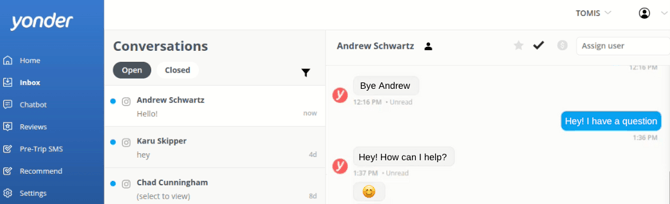
The new Instagram Integration lets you connect your Instagram business account directly to the Yonder Inbox. Once connected, your team can receive and respond to Instagram direct messages (DMs) in real-time ensuring smoother communication and faster customer service all in one place.
Setting Up Instagram Integration
This integration supports Instagram business accounts only. The Instagram account must be linked to a Facebook page to complete the setup.
Step 1: Start the Integration
-
Log in to your Yonder account.
-
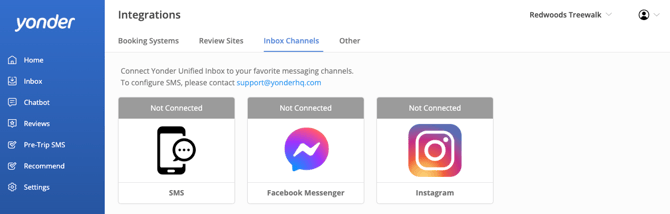
Navigate to Settings → Integrations → Inbox Channels.
-
Click on Instagram.
Step 2: Authorise via Meta
-
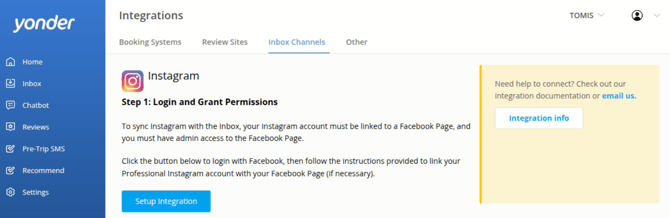
Click Setup Integration. You'll be redirected to Meta's login flow.
-
Log in with the Facebook account that manages the Instagram business profile.
- Log in to your Instagram account.
-
Select the Instagram pages and corresponding Facebook pages you want to connect.
-
Review and confirm the requested permissions.
-
Click Continue, then Save.
Step 3: Select Your Instagram Account
- You'll be redirected back to Yonder.
-
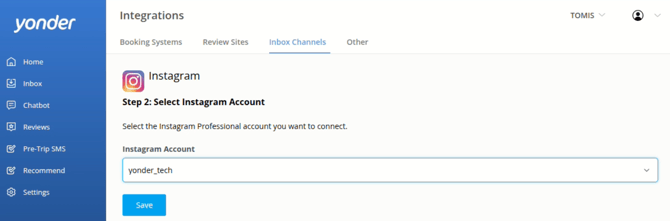
A list of eligible Instagram accounts will appear.
-
Select the account you want to connect, then click Save.
Step 4: Inbox Sync
-
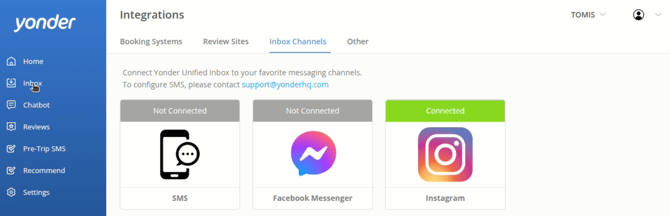
Yonder will begin syncing previous Instagram messages.
-
Wait a few moments, then go to your Inbox to view past and new conversations.
-
You can now send and receive Instagram messages in real-time!
Note: Deleting the Instagram connection from Settings → Inbox Channels will remove all Instagram conversation history from the Yonder Inbox. Reconnecting the same Instagram account will re-sync and pull the conversation history back in.
How Instagram Messaging Works
-
Incoming DMs from Instagram appear in the Yonder Inbox just like any other channel.
-
You can respond directly from Yonder with text-only messages.
- Instagram reactions and Story replies are fully supported and will appear as standard messages.
- The AI chatbot is not currently supported on Instagram. Only human responses are available.
Key Things To Know
- Media support: You can view incoming images, videos, and stickers, but you’ll need to use the Instagram app to send them.
- Connections: Each Yonder account can be linked to one Instagram account only.
- Notifications: Instagram messages will trigger the same Yonder alerts as other inbox channels.
Frequently Asked Questions
Is the chatbot available for Instagram messages?
Not yet. Instagram is currently a human-only channel. Chatbot support for Instagram is in development.
Can I connect an Instagram account that’s not linked to a Facebook Page?
No. Instagram business accounts must be linked to a Facebook Page for Meta integrations to work.
What if I skip permissions or need to start over?
If no Instagram accounts appear during setup, you likely skipped permissions. Just go to Settings > Inbox Channels > Instagram, click Delete, and restart the setup with full permissions
Can I connect multiple Instagram accounts?
Each Yonder account can be linked to one Instagram account. If you manage multiple Yonder accounts (e.g. as an Admin Partner), you can connect one Instagram account to each one.
Can I reply to Instagram messages using images or videos from Yonder?
Not at the moment. Outbound messages from Yonder are text-only. You’ll need to use the Instagram app to send media. Incoming media will display in Yonder.
Do Instagram auto-replies still work after connecting to Yonder?
Yes. Auto-responses configured within Instagram (e.g. Welcome Messages) will still be sent and should appear in the Yonder Inbox.
Have other questions? Contact support@yonderhq.com.