![Yonder_logo (1).png]](https://support.tomis.tech/hs-fs/hubfs/Yonder_logo%20(1).png?height=50&name=Yonder_logo%20(1).png)
Once your Voice Agent is live, the Setup page is where you make it your own. It's split into two tabs — Agent for who your Voice Agent is, and Call Handling for how it handles each call.
The Call Handling tab is where our newest settings live, letting your agent behave one way when you're open and another way when you're closed.
If you're not live yet, start with the Voice Agent Setup & Configuration Guide.
Check out our video on the new Voice Agent Setup features:
Where to Find Your Settings
Go to Voice → Setup in your Yonder dashboard. The page is split into two tabs, so related settings live together and the page is easier to work through:
- Agent — who your Voice Agent is: its status, voice, and personality.
- Call Handling — how your Voice Agent handles each call: business hours, the contacts it forwards to, welcome messages, and behavior rules.
Your agent's phone number appears at the top of both tabs for quick reference.
The Agent Tab
This tab covers your Voice Agent's identity — its status and how it sounds.
Status
The Status toggle controls whether your Voice Agent is answering calls.
- Enabled — the Voice Agent answers calls.
- Disabled — calls are forwarded to your staff number instead.
Note: The status toggle does not override your VoIP routing rules. If your phone provider only forwards calls after-hours, Voice will only receive after-hours calls.

Persona
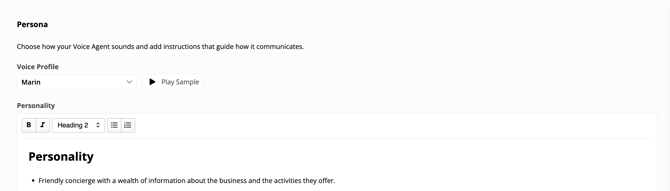
The Persona section is where you choose how your Voice Agent sounds and add instructions that guide how it communicates.
- Voice Profile — choose the voice that best reflects your brand. Use Play Sample to hear it before you decide.
- Personality — describe the persona and tone you want, such as a friendly concierge or an upbeat guide. This shapes how your agent phrases its responses so conversations feel consistent and on-brand.
Knowledge Base
The Voice Agent pulls information from:
- Your Chatbot Content knowledge base
- Your connected booking system products (for availability and booking links)
Keeping your knowledge base accurate and up to date ensures the best Voice performance.

The Call Handling Tab
The Call Handling tab lets your Voice Agent behave differently depending on whether your business is open or closed — so a call at 9pm on a Sunday can be handled differently from one at 11am on a Tuesday.
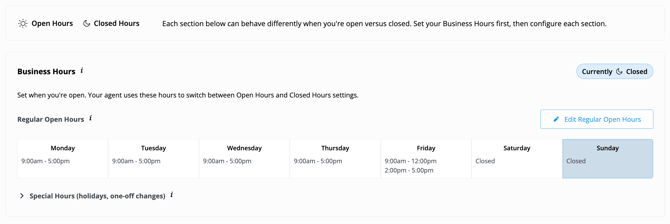
Throughout this tab you'll see a sun and moon legend at the top of the page. The sun represents your Open Hours settings and the moon represents your Closed Hours settings.
Business Hours
Your Business Hours tell the agent when you're open, so it knows which set of settings to use.
- Regular Open Hours — your standard weekly schedule. Click Edit Regular Open Hours to set the hours for each day.
- Special Hours — one-off changes such as public holidays or seasonal closures.
A live indicator shows whether you're Currently Open or Currently Closed and updates on its own, so you can tell at a glance which mode your agent is in right now.
Forward to Staff (Contacts)
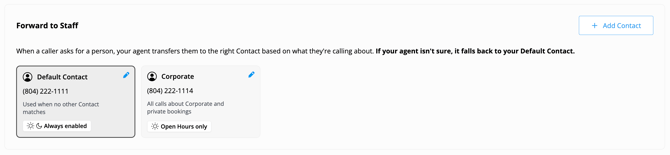
When a caller asks for a person, your agent transfers them to the right Contact based on what they're calling about. If the agent isn't sure, it falls back to your Default Contact.
You can now add more than one forwarding number — useful if different calls should reach different people or departments. Click + Add Contact to add one.
For each Contact you add, you'll set:
- The phone number to forward to.
- A Handles calls about… description, so the agent knows when to use this Contact. This field is required.
- Whether the Contact is used during Open Hours, Closed Hours, or always.
Your Default Contact is always enabled and is used whenever no other Contact matches.
Welcome Messages
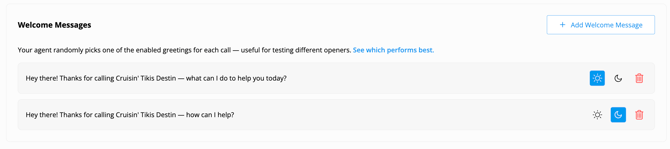
Welcome Messages are the greetings your agent uses to open a call. Your agent randomly picks one of the enabled greetings for each call, which is handy for testing which openers work best. Click + Add Welcome Message to add one.
You can set a greeting to play during Open Hours, Closed Hours, or both, using the sun and moon controls on each message.
Note: Existing welcome messages can't be edited after they're added — if you want to change one, add a new message and remove the old one. To see how your greetings are performing, visit the Welcome Messages reporting page.
Behavior Rules
Behavior Rules customize how the agent behaves, especially around key functions like transfers and sending text messages. You might use them to define when to send an SMS link, which topics must escalate to a human, or how to handle a specific scenario. Click + Add Behavior Rule to add one.
Like the other Call Handling settings, Behavior Rules can differ between Open Hours and Closed Hours — so your agent can follow one set of rules during the day and another after you've closed.

Once your Agent and Call Handling settings are in place, your Voice Agent is set up to answer calls your way — open or closed, day or night.
Frequently Asked Questions
Can I forward calls to more than one person, location, or department?
Yes. You can add multiple Contacts, each with its own number and a description of what it handles. The agent picks the right one based on the call, and uses your Default Contact whenever nothing else matches.
How does the agent know if I'm open or closed?
It uses the Business Hours you set on the Call Handling tab — your Regular Open Hours plus any Special Hours. A live Currently Open / Currently Closed indicator shows which mode it's in right now.
How does transferring to a human work?
If a caller asks to speak with a person, if the agent cannot confidently answer a question, or if you’ve set certain topics to escalate (such as emergencies or booking changes), the call is automatically transferred to the matching Contact - or your Default Contact if none matches.
Why can't I edit a welcome message?
Welcome messages can't be edited once added. To change one, add a new message with the wording you want and remove the old one.
Can my Voice Agent behave differently when I'm open versus closed?
Yes. On the Call Handling tab, you can set different contacts, welcome messages, and behavior rules for Open Hours and Closed Hours. The agent switches between them automatically based on your Business Hours.
Have questions? Contact support@yonderhq.com.