![Yonder_logo (1).png]](https://support.tomis.tech/hs-fs/hubfs/Yonder_logo%20(1).png?height=50&name=Yonder_logo%20(1).png)
How Reviews Help Your Business
Encouraging customer reviews is essential for improving your online reputation. Reviews on sites like Google, Facebook, and TripAdvisor can:
- Enhance your credibility.
- Improve your SEO and search rankings.
- Provide valuable insights into your customers' experiences.
The easier the review process, the more likely your customers will share their feedback. By linking your review sites in Yonder, you can make the process seamless for your customers.
Finding Your Google Review Link
Google is one of the most influential review platforms for tourism businesses. High Google ratings not only build trust but also improve your visibility on search engines. Follow these steps to set up your Google review link:
- Visit: https://business.google.com/dashboard.
- If you manage multiple businesses, ensure you've selected the correct organization.
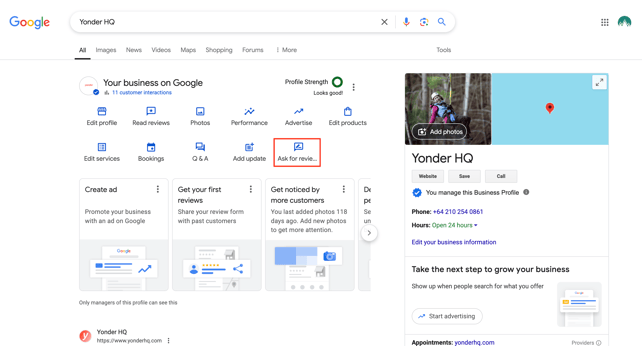
- Locate the "Ask for reviews" button on your Google My Business dashboard.
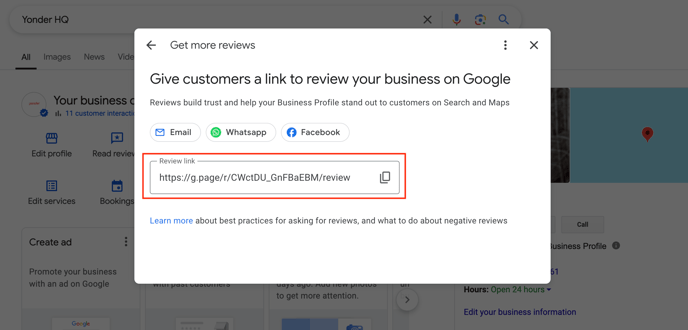
- Copy the link provided in the pop-up window. Keep this for the final step.
Finding Your Facebook Review Link
Facebook is another key platform for collecting customer feedback. Here are two ways to set up your Facebook reviews link:
The Simple Way
Link directly to your Facebook Reviews page using this format:
https://www.facebook.com/YourFacebookBusinessName/reviews/
The Robust Way
Facebook may redirect users to log in before they can access your Reviews page. To ensure customers land on the correct page after logging in, use this special link format:
https://www.facebook.com/login/?next=https%3A%2F%2Fwww.facebook.com%2FYourFacebookBusiness Name%2Freviews%2F
Replace YourFacebookBusinessName with your actual Facebook business name to create your personalised link.
Finding Your Tripadvisor Review Link
Tripadvisor is a vital platform for tourism businesses. To set up your review link:
- Go to: https://www.tripadvisor.co.nz/.
- Search for your business in the search bar.
- Find and click the Write a review button.
- Copy the URL in the address bar. It should look similar to this: https://www.tripadvisor.co.nz/UserReviewEdit-g255112-d17324775-your_tripadvisor_business_name.html
Replace your_tripadvisor_business_name with your actual Tripadvisor business name
Setting Up Review Site Links in Yonder
Once you’ve collected your review site URLs, here’s how to add them to Yonder:
-
Log in to your Yonder account.
-
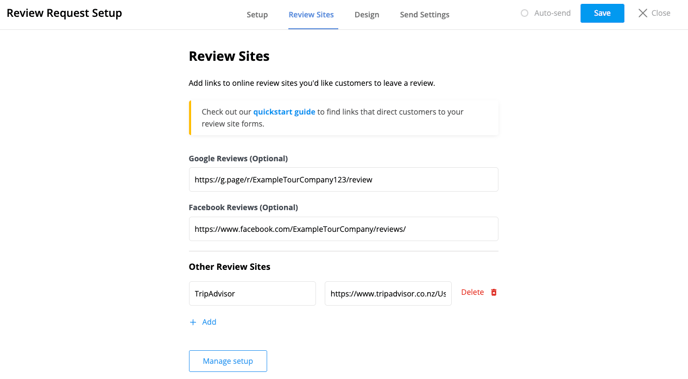
Go to Reviews > Setup > Review Sites
-
Add the review links you found above to the corresponding fields:
-
Google Reviews (Optional) – paste your Google review link
-
Facebook Reviews (Optional) – paste your Facebook review link
-
Other Review Sites - click Add to include platforms like Tripadvisor, Bookme, GetYourGuide, etc. Be sure to add a clear label for each.
-
- Click Save in the top-right corner.
Note: If your Yonder account uses the Organizations feature, you can set up individual review site links for each organization. This allows you to tailor the review experience per location or brand.
By following these steps, you can make it effortless for your customers to share their feedback and help your business grow.
Frequently Asked Questions
Can I add links for other review sites?
Yes! Yonder allows you to manage links for multiple review platforms under Other Review Sites. Please note that only Google and Facebook reviews will be automatically pulled into Yonder and appear in the All Reviews tab. While you can direct guests to external review sites like Tripadvisor, reviews left there will not be imported into Yonder.
How do I test if the links are working correctly?
After setting up each link, click on the Send Test button in your Yonder account to verify that your links direct customers to the correct review form.
What if I have trouble finding my business on Google or TripAdvisor?
Ensure your business is listed and claimed on these platforms. Check their respective help centres for guidance on setting up your business profile.
Can I customise the message customers see when leaving a review?
Yes, Yonder allows you to create custom messaging to guide customers through the review process. You can learn more about customising your review messaging in Adding Custom Questions to Yonder Surveys.
Can I set up different review links for multiple organizations or locations?
If your account uses the Organizations feature, you can assign specific review links to each organization. This is ideal for multi-location or multi-brand setups to ensure customers are sent to the right review page.
Have questions? Contact support@yonderhq.com