![Yonder_logo (1).png]](https://support.tomis.tech/hs-fs/hubfs/Yonder_logo%20(1).png?height=50&name=Yonder_logo%20(1).png)
Data Provided by Bookeo
Bookeo sends Yonder with the following customer details:
-
Customer name and email
-
Visit date (check-in date)
Because of this, when Yonder sends a survey, customers do not need to re-enter this information. Each survey is uniquely tied to the customer, ensuring the response is linked to the relevant visit details.
Survey Sending Rules
-
Yonder automatically sends surveys to all checked-in guests after a specified period (adjustable in Send Settings).
-
Only customers who have been booked with Bookeo will receive surveys.
-
If the same email is used across multiple check-ins (e.g., a family), only one survey email is sent.
-
To avoid sending surveys to repeat customers on every visit, you can define a sending interval (e.g., at least three months between surveys). Adjust this in the Limits and Reminders setup.
How to Integrate Bookeo with Yonder:
-
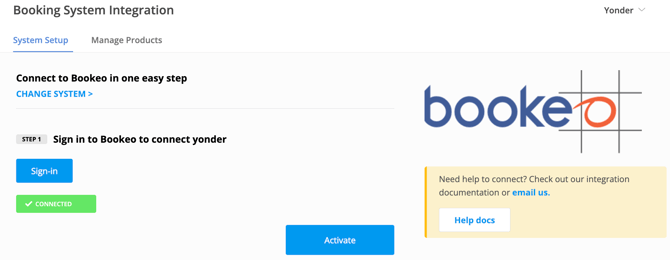
In Yonder, navigate to Settings > Booking Systems > Bookeo.
-
Sign in with your Bookeo Credentials.
-
Click Activate. Yonder will test the connection, and a green success message will confirm the integration is working
Frequently Asked Questions
Q: Does Bookeo support Check Availability in the Chatbot?
A: The current integration with Bookeo does not support Check Availability. This is a work in progress, so for now the Bookeo integration supports automated review requests and Pre-Trip SMS messages.
Q: Can I prevent surveys from being sent too frequently to repeat customers?
A: Yes, you can define a minimum interval between survey sends (e.g., at least three months between surveys). Adjust this in Send Settings.
Q: What happens if multiple people in a group use the same email?
A: Only one survey email will be sent per email address, even if it is used for multiple check-ins.
Q: How do I know if my Bookeo integration is working?
A: After signing in with your Bookeo credentials and clicking Activate, Yonder will test the connection. A green success message indicates that the integration is active.