![Yonder_logo (1).png]](https://support.tomis.tech/hs-fs/hubfs/Yonder_logo%20(1).png?height=50&name=Yonder_logo%20(1).png)
The first few seconds of a phone call shape everything that follows. With Welcome Messages, you can create multiple greeting for your Voice gent, run them at the same time, and use real call data to see which one your guests respond to best.
This guide will walk you through how to set up Welcome Messages, where to find your A/B testing performance data, and how to find the best messaging for your agent and your business.
What are Welcome Messages?
A Welcome Message is the greeting your caller hears the moment your Voice Agent picks up. Every Yonder account starts with one default message, and you can add more whenever you're ready to test new variations.
When a call comes in, Yonder randomly selects one of your enabled Welcome Messages and uses it to greet the caller. Behind the scenes, we record which message was used for every call, so we can show you exactly how each one is performing.
As the data builds up, you'll start to see clear patterns. Maybe a shorter, friendlier greeting drives more engagement. Maybe one that mentions multilingual support keeps international callers on the line longer. The point of testing it to find out for sure, instead of guessing.
How to Set Up Welcome Messages
You'' find Welcome Messages on the Voice Setup page in your Yonder dashboard.
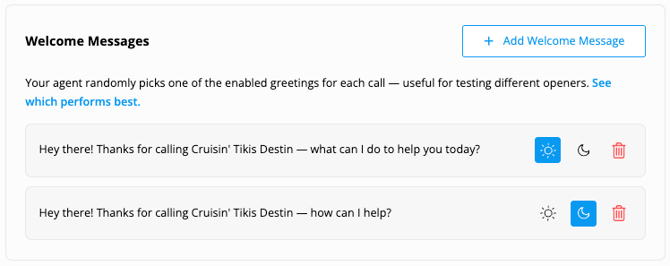
- Go to Voice > Setup and scroll down to the Welcome Messages section.
- Click +Add Welcome Message, enter a new greeting variation, and hit Save.
- Use the sun and moon icons next to the message to set when it plays — sun for Open Hours, moon for Closed Hours.
- Use the toggle next to each message to turn it on or off. Only enabled messages are uses on live calls.
- To delete messages you no longer water, click the trash icon.
Note: Welcome Messages can't be edited once created. Reporting ties performance data to the exact wording of each message, so an edit would make historical comparisons unreliable.
📘 Learn more: Customizing Your Voice Agent's Persona and Call Handling.
Tracking Performance in Reports
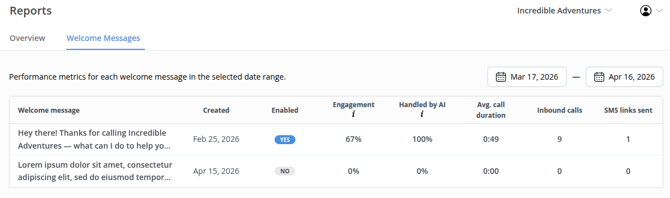
Once you have two or more messages, a new Welcome Messages tab will appear inside your Voice Reports. On this tab, you'll see each of your Welcome Messages alongside the metrics that matter:
- Message: the wording of the greeting.
- Created: when the message was added.
- Enabled: whether the message is currently in rotation on live calls.
- Engagement: the percentage of callers who stayed on the line and engaged with the agent.
- Handled by AI: the percentage of calls that the agent resolved on it's own, without transferring to a human.
- Avg. Call Duration: the average length of calls.
- Inbound Calls: the total number of calls.
- SMS Links Sent: the number of SMS links the agent sent during calls.
Use the date picker at the top right to compare across different time windows.
How to Test Effectively
Welcome Messages are a powerful way to learn what your guests respond to, but only if you give the test room to breath. A few principles to keep in mind:
- Start with 3 or 4 variations. Too few limits what you can compare; too man slows down how quickly each greeting gathers reliable data.
- Change one thing at a time. Vary tone, length, lead-in, or a capability highlight, but hold the rest steady. Otherwise you won't know what moved the numbers.
- Wait for enough data. Aim for at least 100 calls per greeting before drawing conclusions. Strong trends across multiple metrics can justify acting sooner; smaller differences need more time.
- Keep testing. Once you've found a winner, disabled the underperformers and add fresh variations. The best operators treat testing as an ongoing habit, not a one-off project.
Example Testing Strategies
Not sure where to start? Here are a few angles you could try:
Short and human vs. detailed and informative.
-
"Hi, thanks for calling [Business Name]! What can I help you with today?" vs.
- "Hi, thanks for calling [Business Name]. I can answer questions about our tours, check availability, and send you a booking link. What would you like to know?
Multilingual highlight (great for international markets)
- "Hi, you've reached [Business Name]. How can I help?" vs.
- "Hi, you've reached [Business Name]. I can help in English, Spanish, French, and over 20 other languages. What can I do for your today?
Setting expectations about the AI
-
"Hi, thanks for calling [Business Name]. How can I help you today? vs.
- "Hi, thanks for calling [Business Name]. Our team isn't available right now, but I'm an AI assistant and I can help with most questions, including bookings. What can I do for you?"
Frequently Asked Questions
Can I edit a Welcome Message after creating it?
No. Welcome Messages can't be edited once created, because reporting ties performance data to the exact wording of each message. To change a greeting, delete it and create a new one.
How many Welcome Messages should I create?
Three of four is the recommended starting point. Too few limits what you can compare and too many means it takes longer to accumulate enough calls per message for the data to be reliable.
Where do I find Welcome Message performance data?
Once you have two or more messages, a Welcome Messages tab will appear on the Reports page. The tab is hidden when you only have one message because there is nothing to compare it against.
How long should I run the test before acting on the results?
Aim for at least 100 calls per greeting before drawing conclusions. Strong trends across multiple metrics can justify acting sooner. Smaller differences in a single metric usually need more time.
Have questions? Contact support@yonderhq.com.