![Yonder_logo (1).png]](https://support.tomis.tech/hs-fs/hubfs/Yonder_logo%20(1).png?height=50&name=Yonder_logo%20(1).png)
Yonder's Unified Inbox brings all your customer communications into one place, so your team can manage messages across multiple platforms more efficiently. From live chat to SMS, every conversation is accessible from a single view - helping your team stay organised, collaborative, and responsive.
Check out the video below for a quick walkthrough of the latest features:
Inbox Integrations
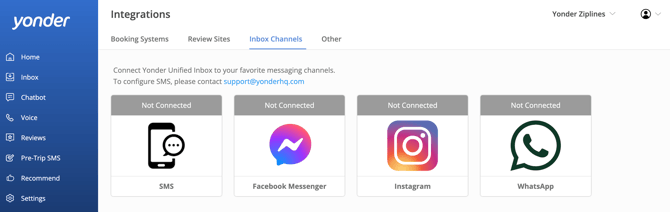
Keep all your customer communications in one place with integrated inbox channels. You can now manage conversations from:
-
💻 Website Chatbot
-
📩 Facebook Messenger
-
📱 SMS Text Messages
- 🔜 Instagram DMs
No more switching between apps. No more missed messages. Just one powerful inbox.
Inbox Navigation
The inbox is structured to help your team quickly understand what needs attention and what’s already resolved. You’ll see four key inboxes:
1. Open
This inbox contains all active conversations that are currently in progress. These are conversations that have not yet been marked as closed. Use this view to manage ongoing discussions and ensure timely responses.
2. Awaiting Reply (Your Team's Action List)
This inbox shows only conversations that require human attention. A conversation enters this inbox when:
- A customer sends a new message in a live (human-handled) chat
- An SMS contact form is submitted
- An email contact form is submitted
- The chatbot is paused and a guest sends a message
A conversation leaves this inbox when you send a reply or mark the conversation as closed. It then moves back into All Conversations.
If a customer replies after a conversation has been closed, it automatically re-enters Awaiting Reply — so nothing slips through the cracks.
Simple rule: If the ball is in your court, it’s in Awaiting Reply.
3. Assigned to Me (Your Personal Workspace)
This inbox shows conversations specifically assigned to you — so you can focus on what’s yours without distraction. Perfect for teams who divide responsibilities or manage shifts.
4. Closed
This inbox contains all resolved conversations. Closing a conversation removes it from active views but keeps it accessible for historical reference, reporting, and quality review.
If a customer sends a new message in a closed conversation, it will automatically reopen and move back into Open and Awaiting Reply.
Inbox Filtering
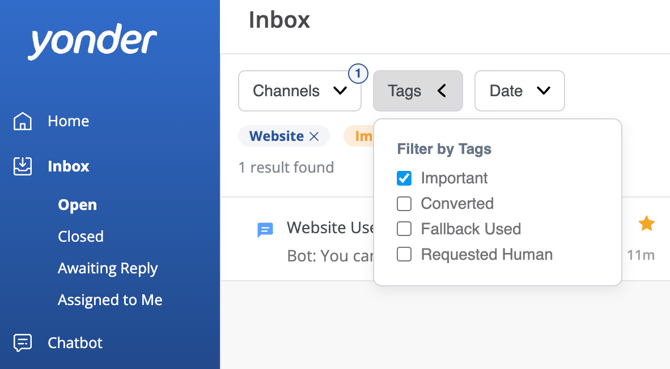
Need to narrow things down? Filters make it easy. You can filter conversations by:
-
Channel: Website, SMS, Email, WhatsApp, Instagram & Messenger
-
Tags: Important, Converted, Fallback Used, & Requested Human
-
Date Range: Last 24 hours, 7 days, 30 days, 90 days, 180 days, or a custom range
Filters support multi-select and combinations. For example, "Show me SMS conversations marked Converted in the last 30 Days".
Conversation Transparency (AI Response Insights)
Ever wondered why the chatbot gave a particular answer or where it sourced the information?
Click on a guest message to see which responses the AI used to generate its reply.
This helps you:
- Troubleshoot incorrect responses
- Identify gaps in your chatbot content
- Edit or improve responses directly
- Gain full transparency into how AI replies are created
It’s like looking under the bonnet of your chatbot — without needing to be technical.
Quick Actions in the Inbox
1. Mark as Important
Click the star icon to flag a conversation that needs follow-up or represents a valuable opportunity. Use filters to quickly find all Important conversations.
2. Mark as Converted
Click the dollar icon to mark a conversation that resulted in a sale, booking, or successful outcome. Filter by Converted to track performance.
3. Assign a Conversation
Use the assignment dropdown to allocate a conversation to a specific team member. They’ll receive a notification (based on their settings) and can manage it from their Assigned to Me inbox.
4. View Customer Profile
Click the profile icon to see the customer’s contact details and interaction history. This gives you full context before replying.
5. Close a Conversation
Mark conversations as resolved using the checkmark icon. Closed conversations move out of active inboxes but remain accessible in the Closed view. If the customer replies again, it automatically reopens.
6. Mark as Spam
Click the Mark as Spam icon to remove an unwanted conversation from your inbox, Training tab, and Reports. It also pauses the chatbot for that conversation, so it stops replying. Spam conversations aren't deleted, just hidden — contact support if you ever need one restored.
7. Translate a Conversation
Click Translate in the chat actions to translate the whole conversation into English. Nothing is translated until you click it, so conversations stay in their original language by default.
Frequently Asked Questions
Can we reopen conversations in case they were closed by mistake?
Yes, you can! Just send another message in the chat, and it’ll reopen automatically. You can also click the arrow in the top right corner labelled 'Open conversation'.
Is the 'Converted' tag automatically applied to chatbot conversations that result in sales?
Converted tags are human-initiated only. To track chatbot-driven revenue, connect your GA4 account.
What happens if the chatbot is paused?
If a guest replies while the chatbot is paused, the conversation moves into Awaiting Reply so your team can step in.
Will assigned users receive notifications?
Yes — notifications are sent based on each users accounts notifications settings.
What happens when I mark a conversation as spam?
It's removed from your inboxes, Training tab, and Reports, so your metrics stay accurate — and the chatbot stops replying to that conversation.
Can I filter across multiple channels at once?
Absolutely. Filters support multi-select and combinations, so you can refine results as much as needed.
Does translating change what the customer sees?
No. Translation only changes your view of the conversation in the Inbox. The customer sees the original messages, and your replies send exactly as you write them.
Have questions? Contact support@yonderhq.com