![Yonder_logo (1).png]](https://support.tomis.tech/hs-fs/hubfs/Yonder_logo%20(1).png?height=50&name=Yonder_logo%20(1).png)
Not every customer message arrives while you're sitting at a computer. The Yonder mobile app puts your Inbox and reviews in your pocket, so you can answer a guest question, reply to a Google review, or pick up a conversation between tours. It's built for operators and their teams — anyone who needs to stay responsive while they're out and about.
This guide covers what the app does, how to get signed in, and how to make sure notifications reach you.
Before You Begin
A few things need to be in place before you can sign in:
- Your business is registered with Yonder on an active subscription. The app is for Yonder customers — it isn't open to the general public.
- You have a Yonder user account. Accounts are created and managed from the web dashboard, not the app, so if you don't have login details yet, ask whoever manages your Yonder account to set you up or email support@yonderhq.com.
Getting the App
The Yonder app is available on both iOS and Android, free to download:
- iOS — search YonderHQ on the Apple App Store.
- Android — search YonderHQ on Google Play.

Signing In
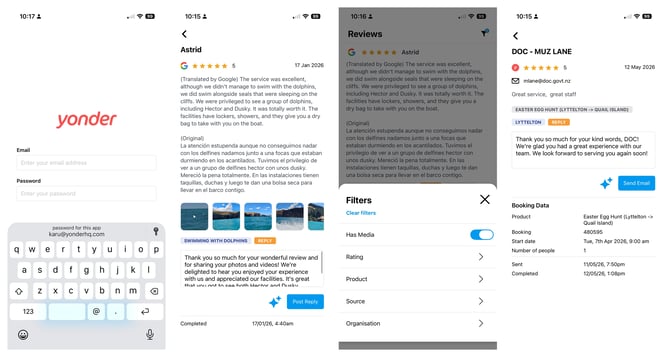
Open the app and sign in with the same Yonder credentials you use on the web dashboard.
You can now save your password to your Apple Keychain or Android password manager, so logging back in is as simple as a tap or a face scan. It's worth setting this up the first time — it saves you typing your password every time the app asks.
What You Can Do in the App
The app focuses on the things you're most likely to need on the go — responding to customers and keeping on top of reviews.
Inbox
View and respond to your guest conversations from anywhere. When a customer messages you, you can reply right from your phone — no need to wait until you're back at a desk.
You can filter the Inbox to find what matters most:
- Important — conversations flagged as needing attention.
- Assigned to me — conversations assigned to you specifically.
- SMS, Instagram, and WhatsApp — filter by channel, depending on which Inbox channel integrations you have set up.
Reviews and Surveys
Keep your reputation management going from your phone. The app brings your Google Reviews and Yonder surveys together so you can read and respond to guest feedback wherever you are:
- View and respond to your Google Reviews and reply to Yonder surveys directly in the app.
- Use AI Review Replies to generate a suggested response, then edit and send it — handy when you want a thoughtful reply but don't have time to write from scratch.
- View photos and videos left on Google Reviews, and filter your reviews by media to find them quickly.
Staying on Top of Notifications
Notifications are what make the app genuinely useful when you're away from your desk — they're how you find out a customer needs you.
1. Turn on the notifications you want (web dashboard). Your notification preferences are unique to you, and you set them from the web dashboard — not the app. Sign in to your Yonder account, go to Settings → Notifications, toggle the options you'd like, and click Save.
2. Allow push notifications on your phone. For alerts to actually reach the app, allow push notifications when the app first asks. If you tapped Don't Allow, you can turn them back on in your phone's settings under Notifications → Yonder.
For the full breakdown of every notification type and where alerts can be sent, see Customizing Notification Settings.
Among the notifications most useful on the go:
- Fallback message triggered — your chatbot couldn't answer a guests question.
- Contact details left — a customer submits an inquiry form.
- Conversation assigned to me — a conversation is assigned to you.
- Customer feedback — a customer submits a Yonder survey or leaves a Google review.
Frequently Asked Questions
Is the Yonder app free?
Yes. The app itself is a free download on both the App Store and Google Play. You'll need an active Yonder subscription and a user account to sign in and use it.
Why am I not getting notifications?
The most common reasons are an out-of-date app, or notifications being declined on first launch.
Can I reply to WhatsApp messages in the app?
Yes — when a customer starts a WhatsApp conversation, you can reply within the 24-hour service window. Note that WhatsApp is a human-only channel in the app for now, and messages sent from the standalone WhatsApp Business app won't appear in your Yonder Inbox.
Why is my mobile app not working?
Most app issues clear up by updating to the latest version (check Settings → Version), fully closing and reopening the app, or logging out and back in under Settings → Log out.
Have other questions? Feel free to reach out to us at support@yonderhq.com.