![Yonder_logo (1).png]](https://support.tomis.tech/hs-fs/hubfs/Yonder_logo%20(1).png?height=50&name=Yonder_logo%20(1).png)
The Call Logs section gives you full visibility into how your Voice Agent is handling real customer calls. You can see what was asked, how it was answered, whether availability was checked, when SMS links were sent, and if a call was transferred to a human — all in one place.
Head to Voice → Call Logs in your Yonder dashboard to get started.
Call Logs Overview
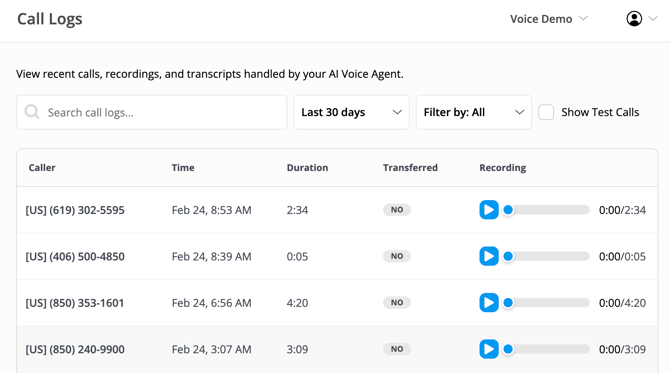
The main Call Logs page gives you a table view of every inbound call handled by your Voice Agent. For each call, you’ll see:
- Caller phone number
- Date and time
- Call duration
- Whether the call was transferred to a human (Yes/No)
-
A recording playback option
It’s a clean snapshot of recent activity so you can quickly understand what’s happening call by call.
Searching & Filtering
Looking for something specific? You’ve got options. You can:
-
Search by caller number
-
Search using transcript keywords
-
Filter by date range (e.g. last 30 days)
-
Filter by transfer status (transferred vs not transferred)
-
Toggle Show Test Calls to include or exclude internal testing
Viewing Call Details
Click into any call to open the Voice Log Details page. This is where you’ll see the full details of the conversation.
Caller Details
View the caller’s country location, phone number, date, time, and call duration.
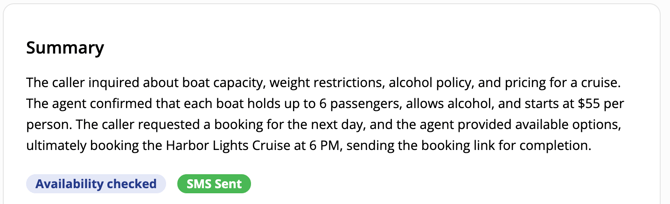
AI-Generated Summary
Each call includes a short summary that explains:
- What the caller asked
- How the Voice Agent responded
-
The overall outcome
It’s the fastest way to understand what happened without listening to the full recording.
System Actions
Below the summary, you’ll see system tags such as: Availability Checked & SMS Sent.
These show when the Voice Agent took specific actions during the conversation.
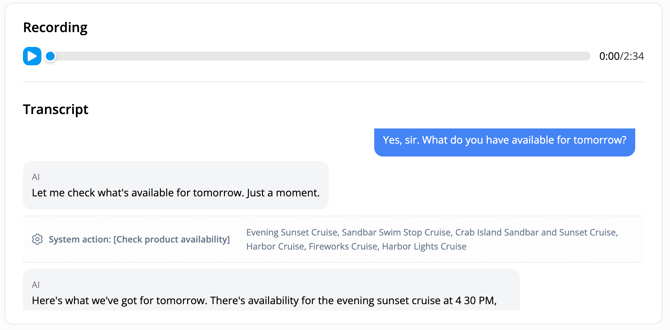
Inside the transcript, you can see even more detail, including:
- Exactly which products were checked for availability
- The full SMS links sent to the caller
-
When a transfer to a human was initiated
This gives you complete transparency into how the call was handled — not just what was said, but what the system actually did.
Call Recording
You can listen to the full call recording directly from the log. This is helpful for:
- Quality assurance
- Reviewing tone and flow
- Understanding why a transfer occurred
-
Coaching or internal training
Full Transcript
The call transcript shows both sides of the conversation — what the caller said and how the Voice Agent responded.
System actions are embedded directly within the transcript so you can see when availability was checked, when links were sent, and when transfers occurred.
If you prefer reading over listening, this makes reviewing calls fast and efficient.
Frequently Asked Questions
Are all calls recorded?
Yes. All calls routed through the Voice Agent are recorded and logged in the Call Logs section.
What does “Transferred to a Human” mean?
It means the call was escalated from the Voice Agent to your designated Forward to Staff number.
Can I delete call logs?
Call logs cannot be manually deleted. However, you can mark internal calls as a Test to exclude them from reporting.
Can I see how many SMS links were sent?
Yes. Individual SMS links are visible inside each call log and within the transcript. To see total SMS links sent over a selected date range, head to the Voice Reports tab.
Have questions? Contact support@yonderhq.com